MCP server and plugins for Revit, Archicad, Rhino and more
Let your AI assistant work in your model.
Archi Automate connects Claude, Codex or Gemini to the design tools you use. Ask in plain words; it reads, checks, changes and renders the model.
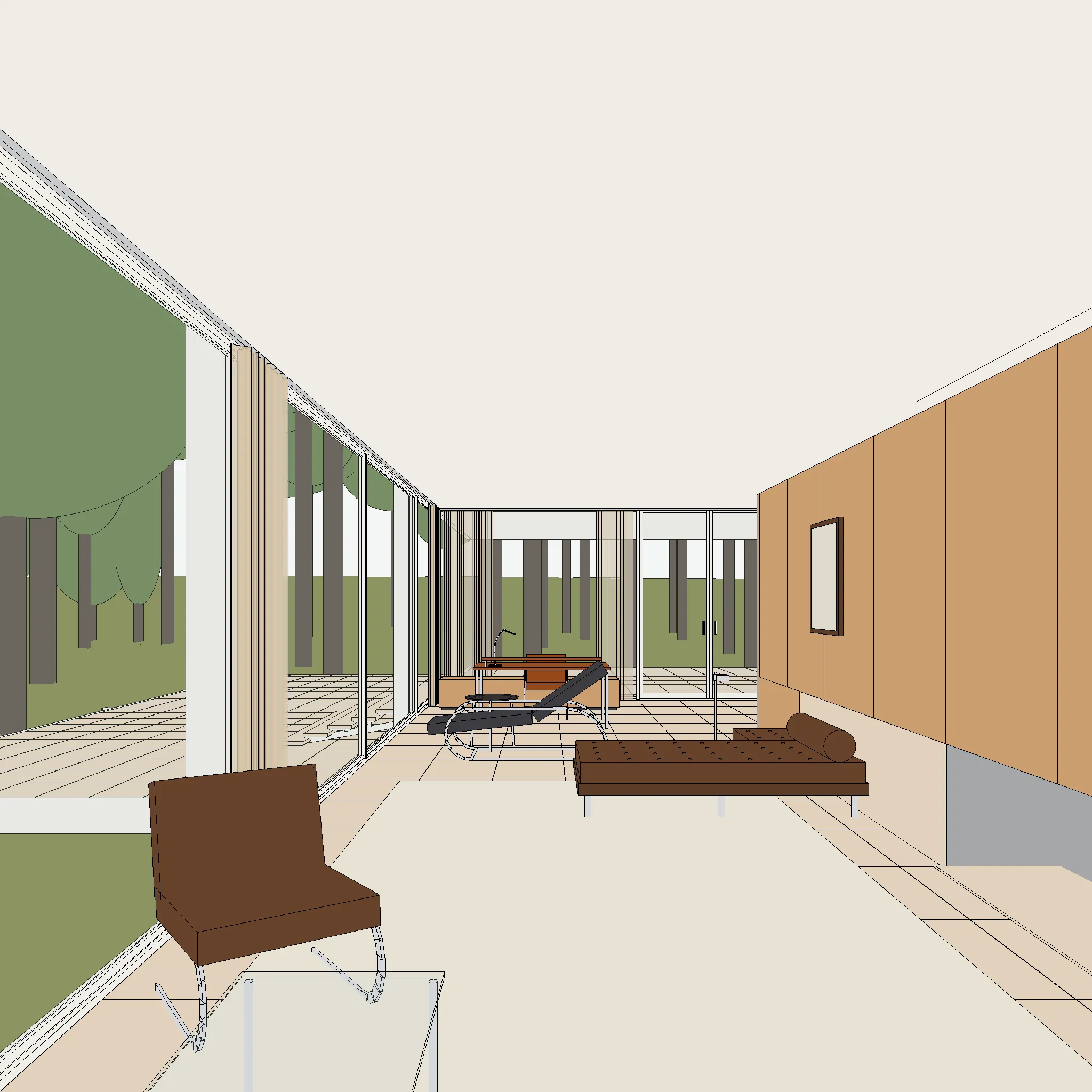
Example 1 of 3, AI render: Farnsworth House, Sunbeam Room. You ask your assistant: Using the Archi Automate MCP, take the Revit view [FH - Style I1 living] as the reference image and render it with render_view on [GPT Image 2.5 Sunburst]… Archi Automate runs, in order: render_view.
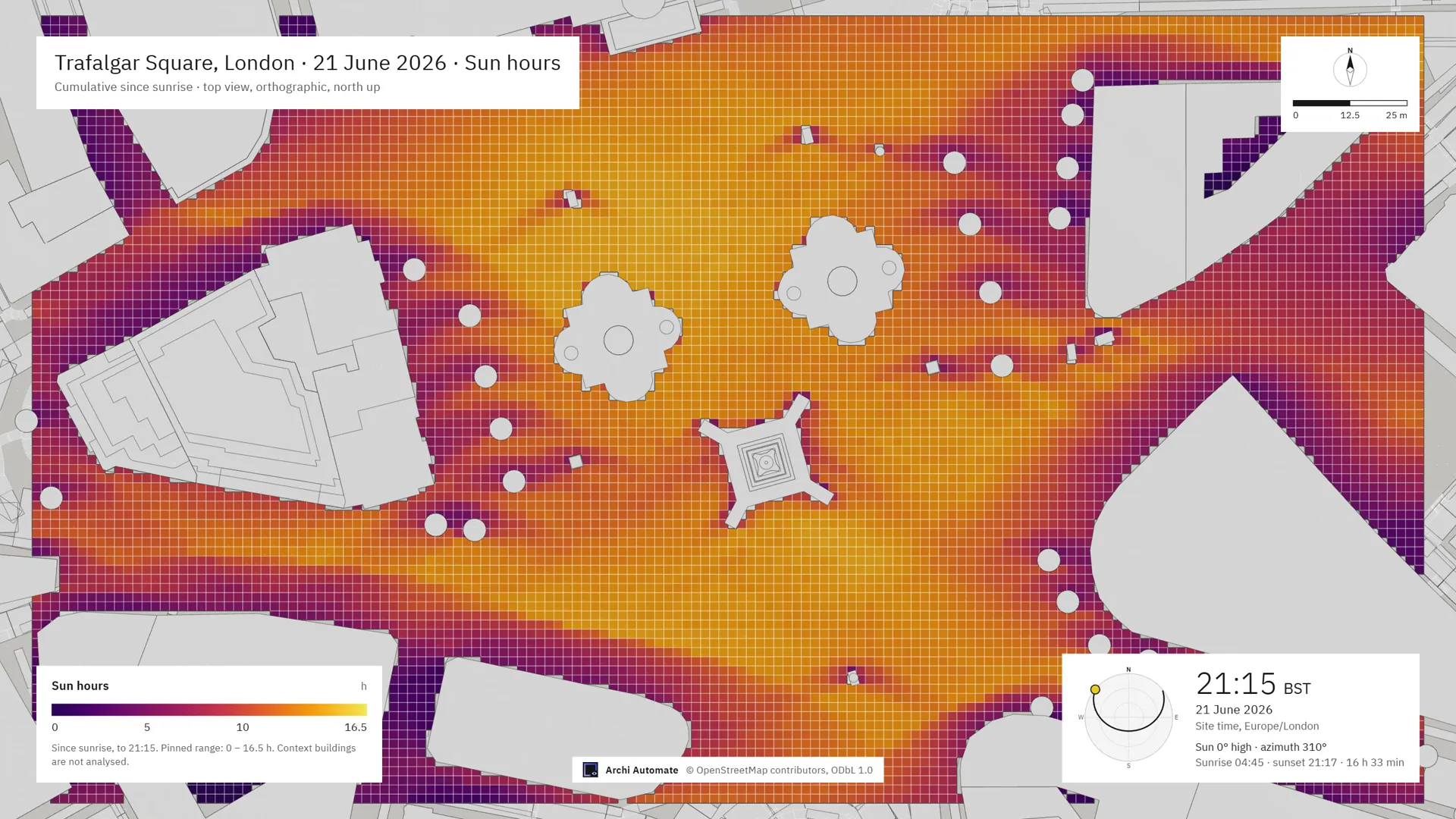
Example 2 of 3, Sun study: Trafalgar Square, sun hours on 21 June. You ask your assistant: Using the Archi Automate MCP, start a new IFC model and import the OpenStreetMap context within [350 m] of [Trafalgar Square, London] with ifc_import_context… Archi Automate runs, in order: ifc_create_model, ifc_import_context, ifc_run_write_task, ifc_save, export_scene, sim_sun, viewer_show, viewer_set, viewer_record.
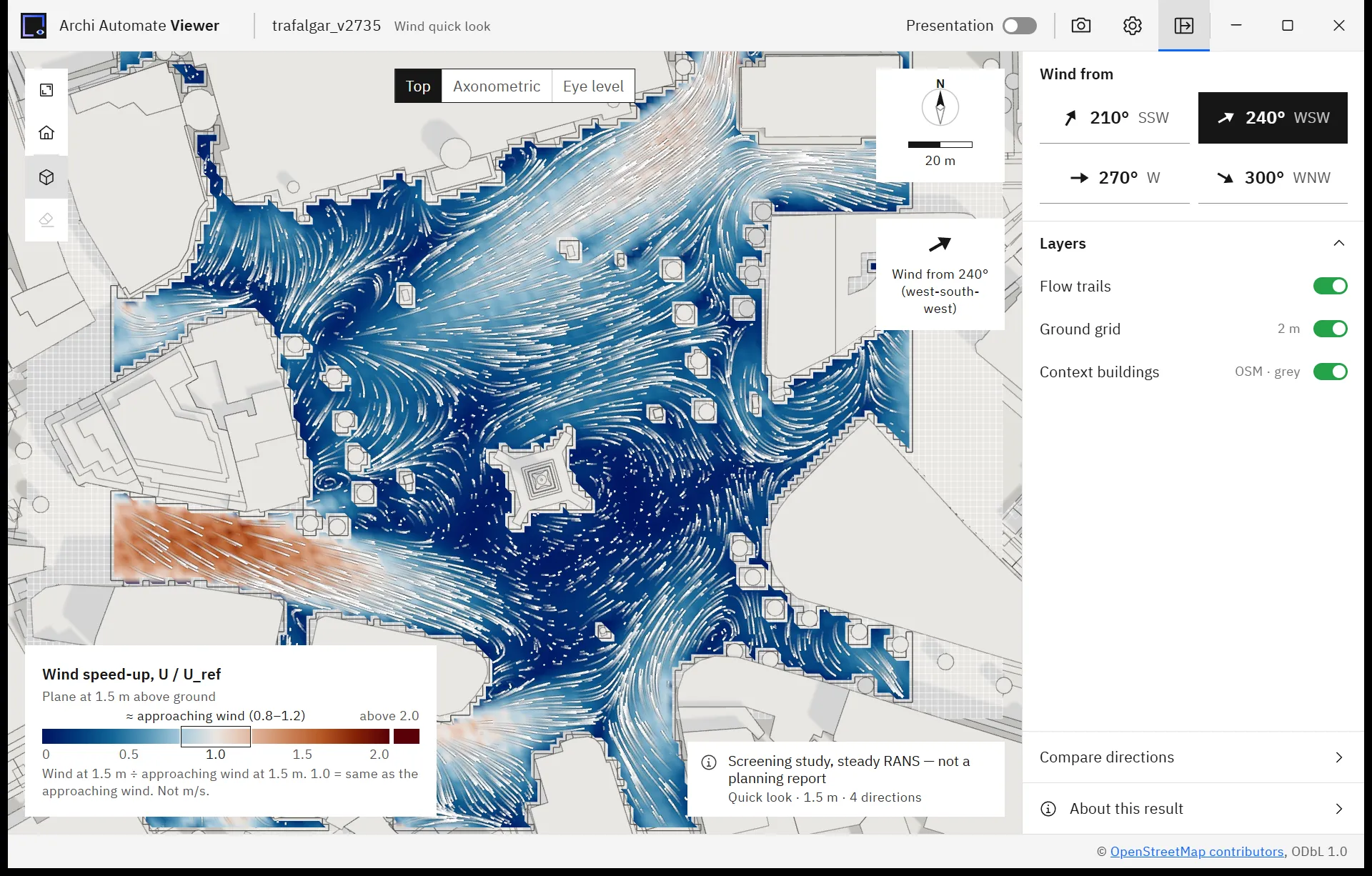
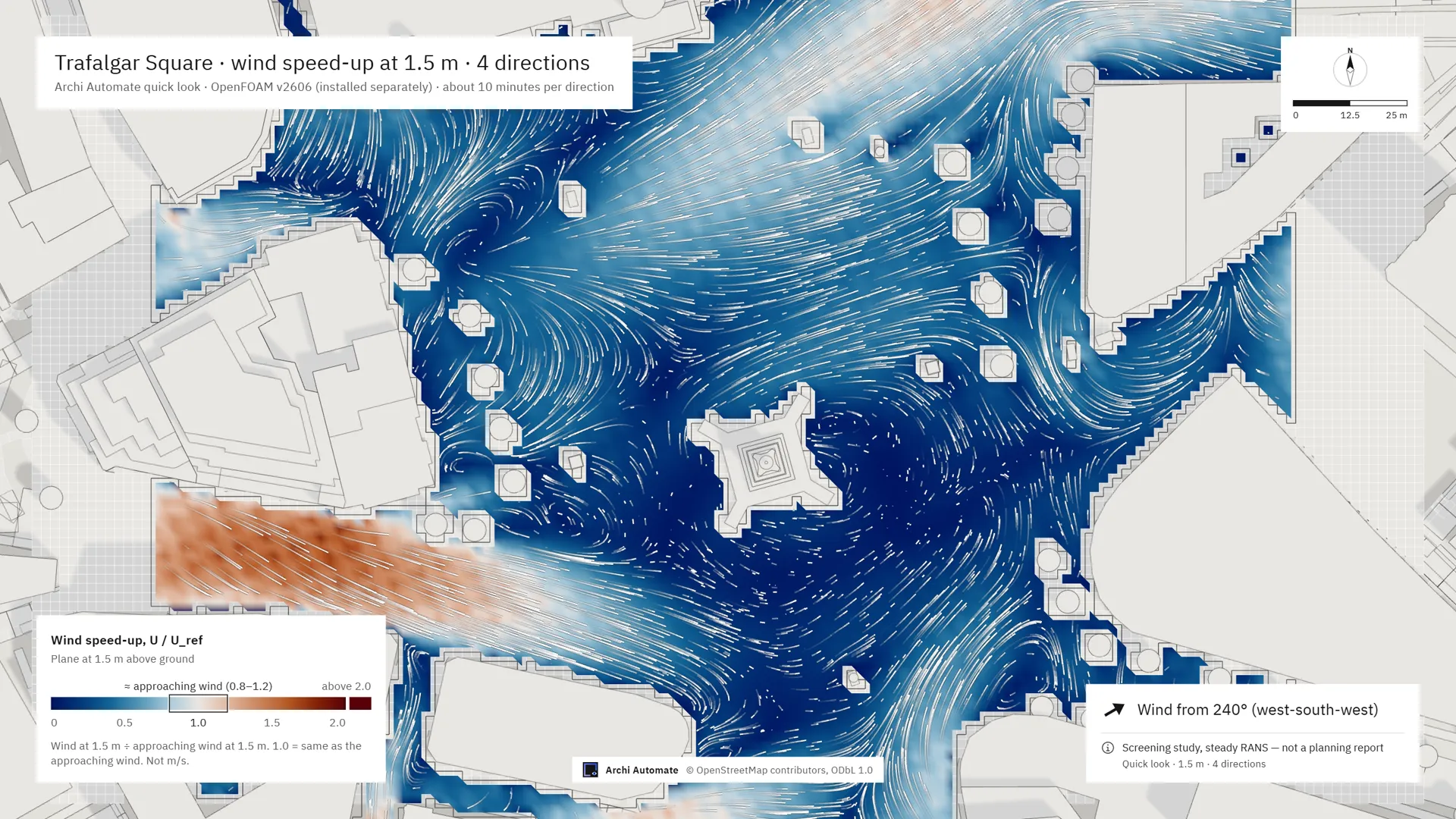
Example 3 of 3, Wind study: Trafalgar Square, wind speed-up at 1.5 m. You ask your assistant: Using the Archi Automate MCP, run a wind quick look (sim_wind) on the OpenStreetMap context around [Trafalgar Square, London] for the [four most frequent] wind directions… Archi Automate runs, in order: ifc_create_model, ifc_import_context, ifc_run_write_task, ifc_save, export_scene, engine_status, sim_wind, ifc_job_status, viewer_show, viewer_set, viewer_record, viewer_capture.
You ask your assistant
Archi Automate runs, from a Revit viewon an IFC modelon an IFC model

How it works
Archi Automate is an MCP server with plugins for your design tools. MCP is the open standard AI assistants such as Claude use to connect to other software; Archi Automate’s plugins then carry out the work inside your design tools.
Step 1
Install Archi Automate and connect your assistant
Windows installer. Works with Claude, Codex, Gemini, Cursor or any MCP client.
To connect Claude to Revit or Rhino, open the Archi Automate Hub, click Connect next to Claude on its LLMs page, restart Claude and ask “List the open models you can see.” Setup guide: connect Claude to Revit, Rhino and Archicad
Step 2
Ask in plain words
Type the task as you would to a colleague. Every example on this site shows the prompt behind it, and says whether it is the prompt as sent or a summary of a longer session.
Step 3
The assistant uses named tools in your live model, and you check the result
Renders, checks, changes and studies come back to you to review. AI renders can change geometry, so compare them with the model view.
Comes with its own 3D viewer
Sun and wind studies open in the Archi Automate Viewer, connected to your assistant.
See the sun and wind studies